MyHerrfors user guide
The new MyHerrfors service gives you more options for managing your electricity consumption and contracts. You can update your contact details, monitor your consumption, manage your electricity contracts and check spot prices. You can also view your invoices, check their payment status and postpone due dates.
This page provides instructions for using the service. Our customer service team will be happy to help if you encounter any problems or have questions.
MyHerrfors user guide
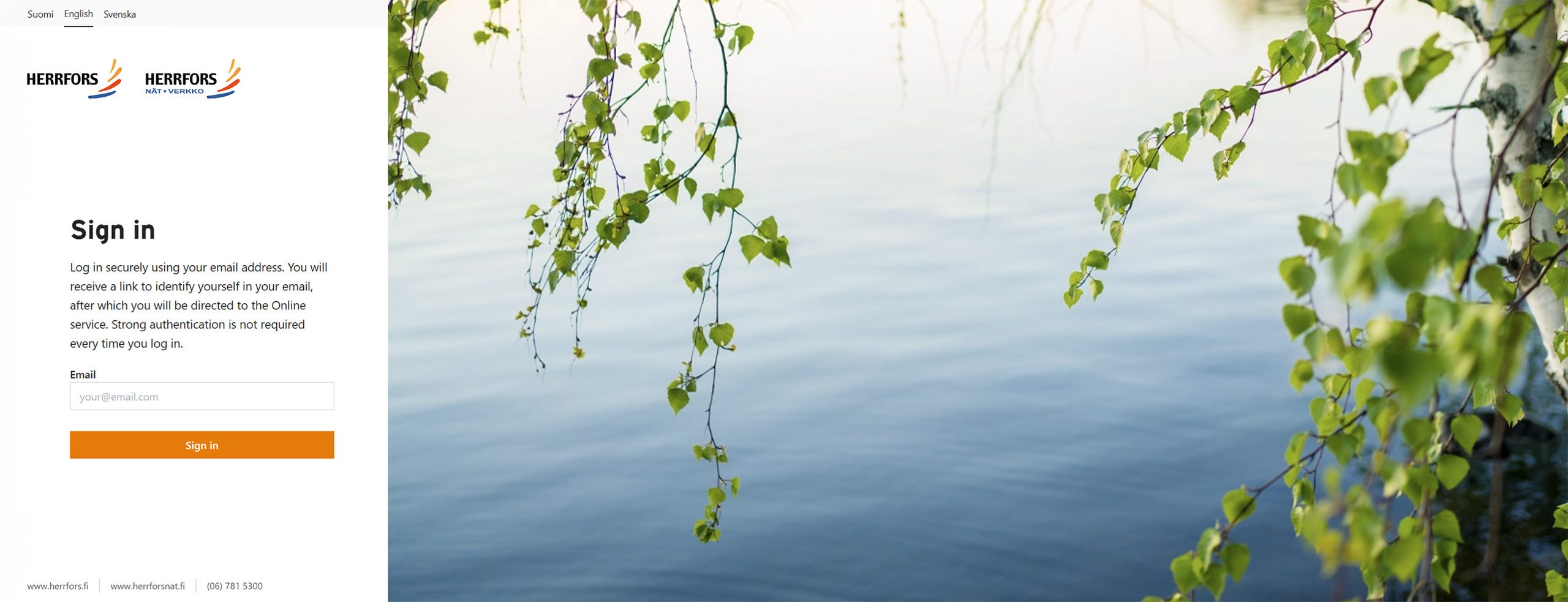
1. To log in to the service, enter your email address in the field on the login page.
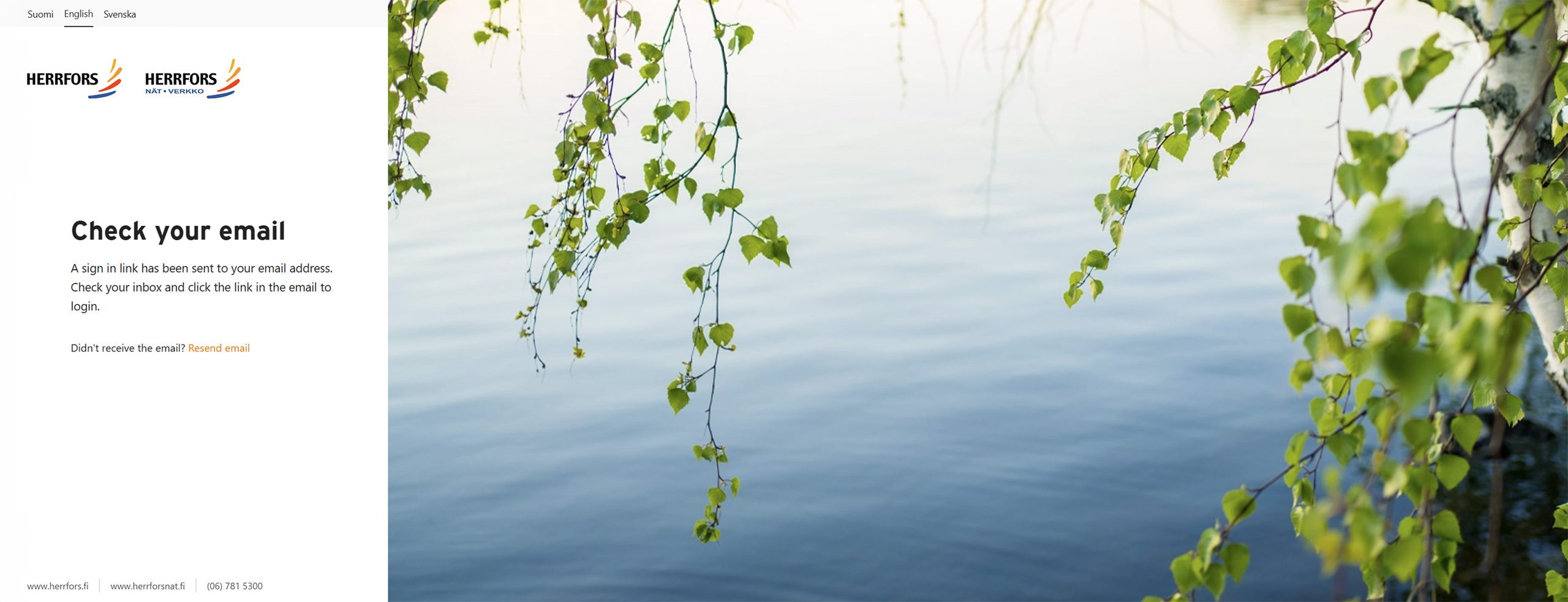
2. You will receive a login link in your email.
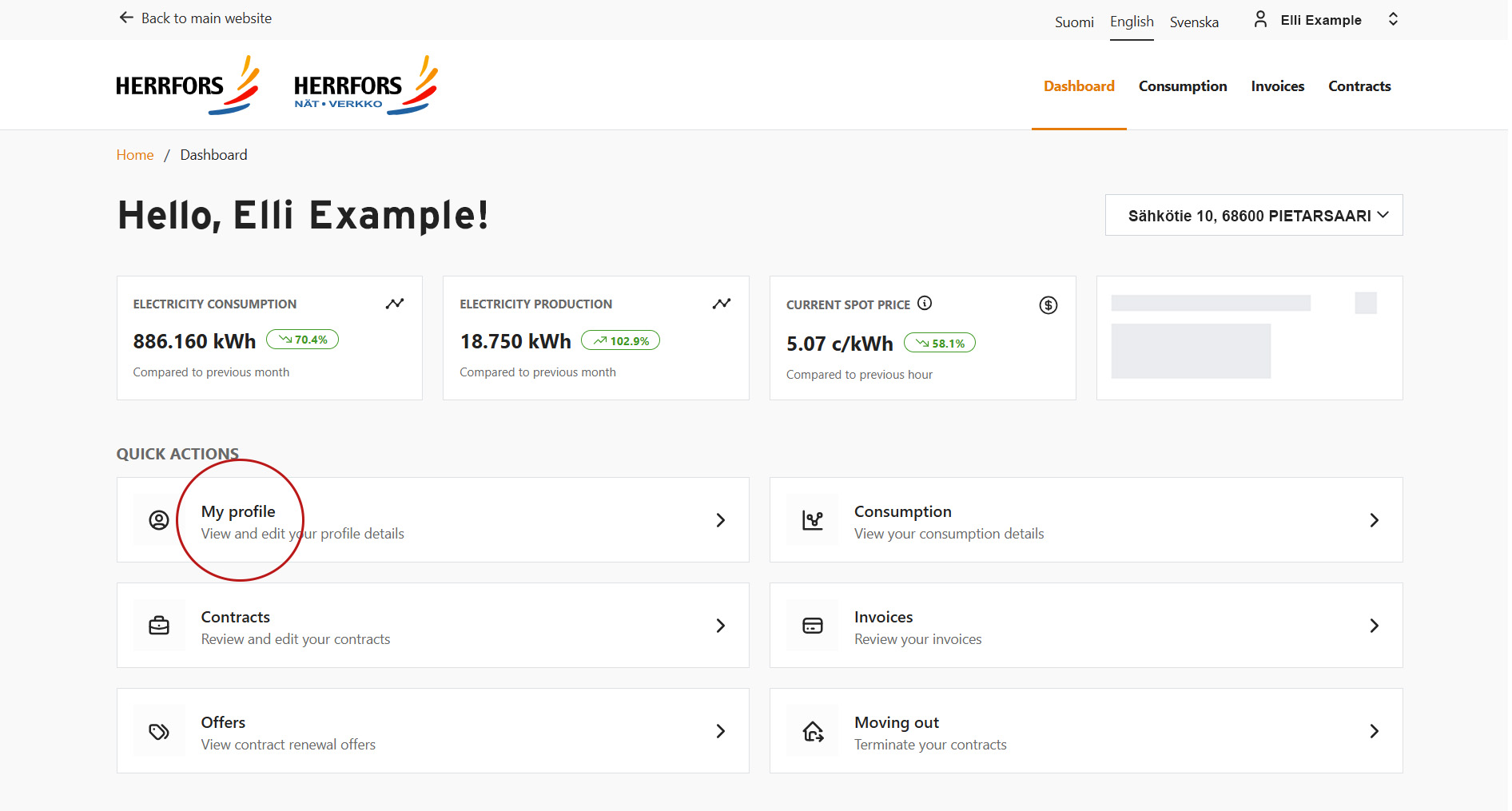
Click “My details” on the home page to open the Personal details page, where you can check and update your contact information.
To update your customer details in MyHerrfors:
1. Log in to MyHerrfors.
2. Click “My profile” on the Overview page.
3. Update your details:
- On the “Personal details” tab, you can select your preferred language for communicating with us.
- On the “Contact details” tab, you can update your email address and phone number.
Please note that making too many changes within one hour, such as updating your email address repeatedly, may cause your customer details to be locked in Datahub.
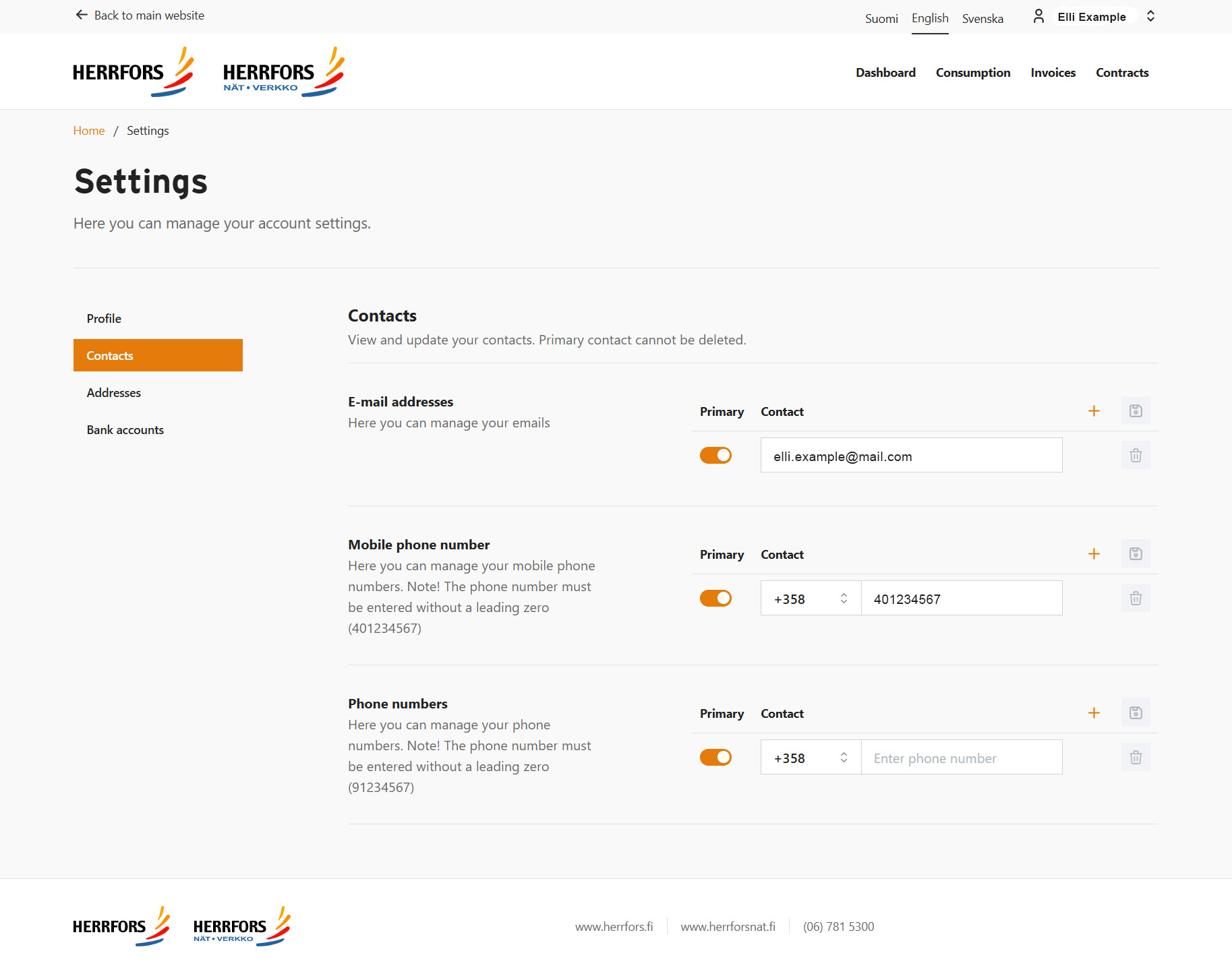
4. Make sure your contact details are up to date so that we can reach you when needed.
The “Invoices” tab shows all your invoices, including their amounts and due dates. Paid and unpaid invoices are listed in chronological order.
To find your invoices in MyHerrfors:
- Log in to MyHerrfors.
2. Click “Invoices” on the Overview page.
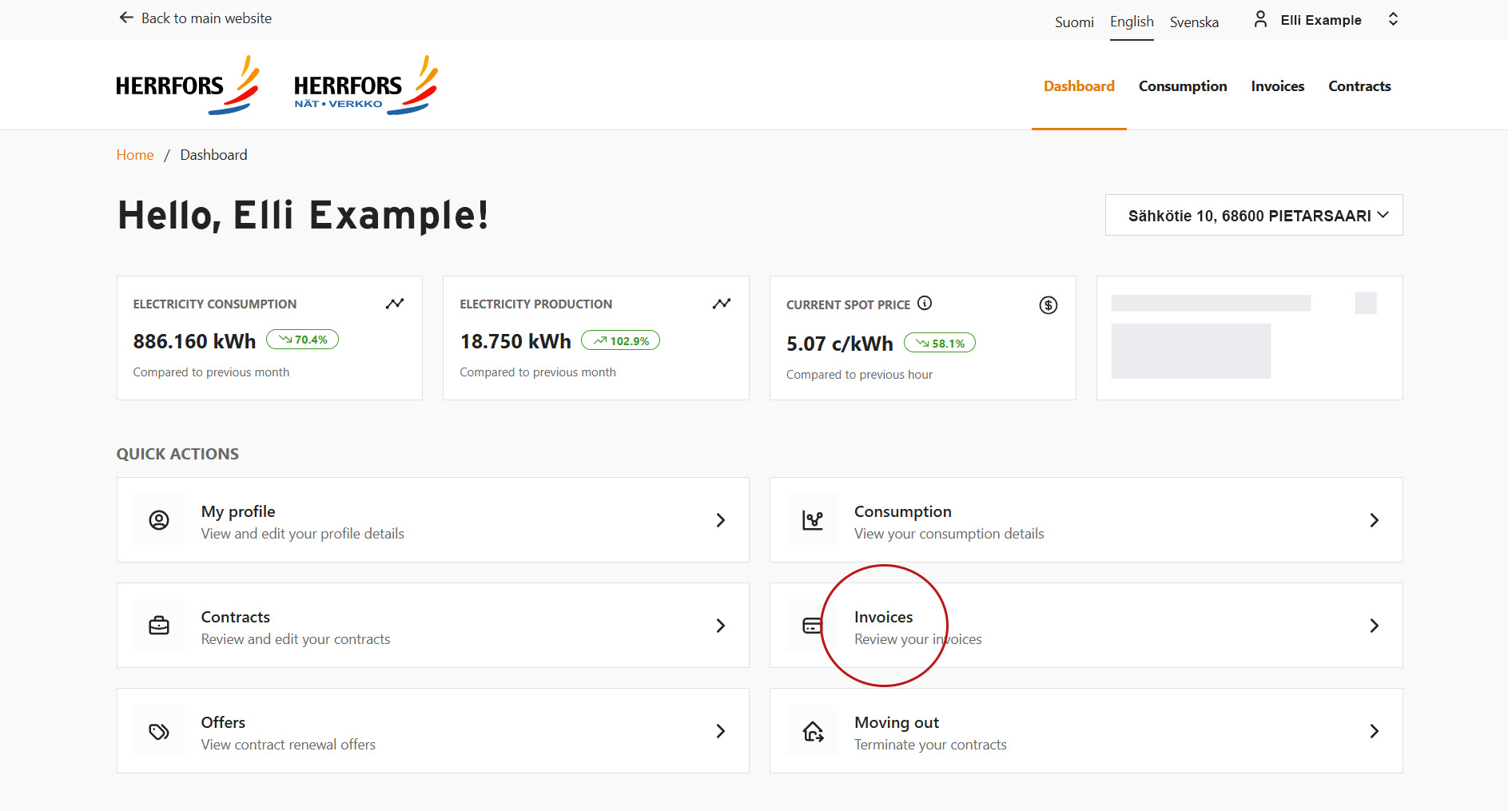
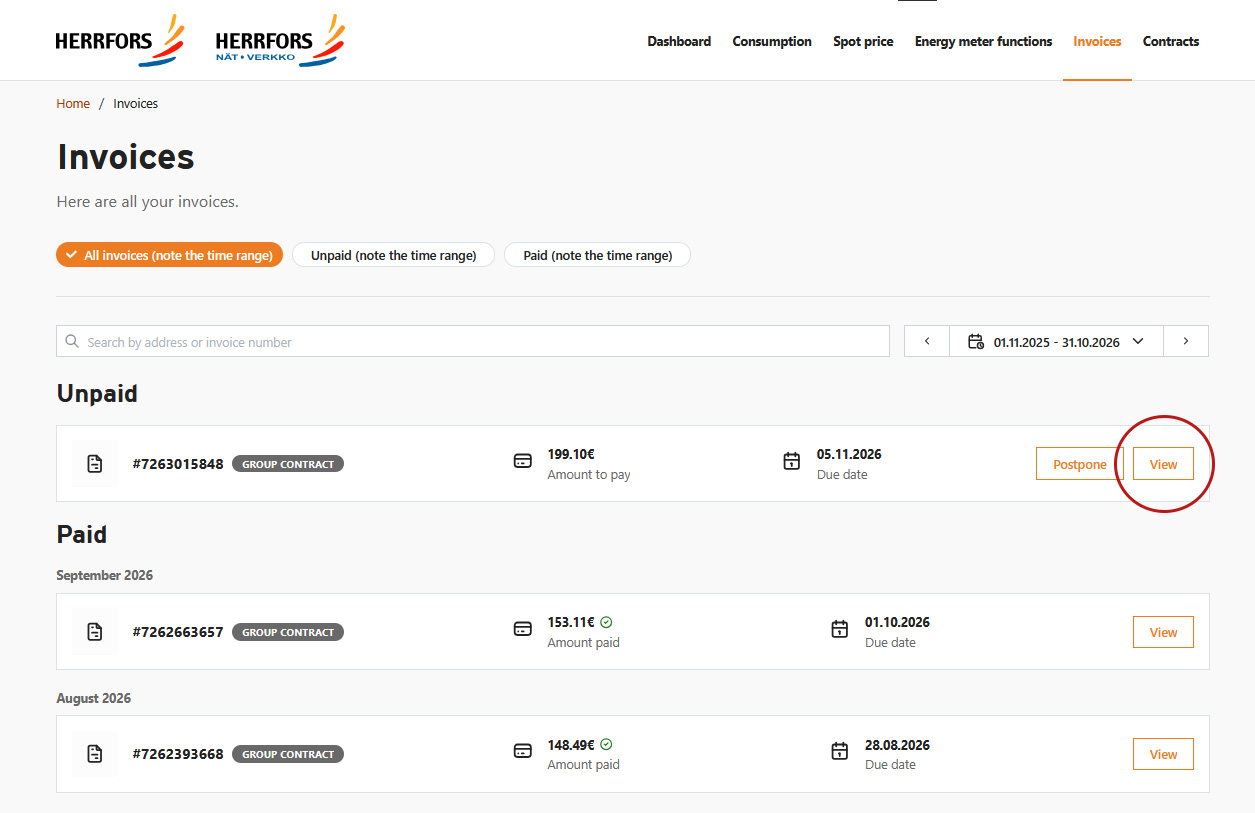
3. Select an invoice
You can see all your paid and unpaid invoices.
4. View the invoice details
Click “View” to see the contents of the invoice.
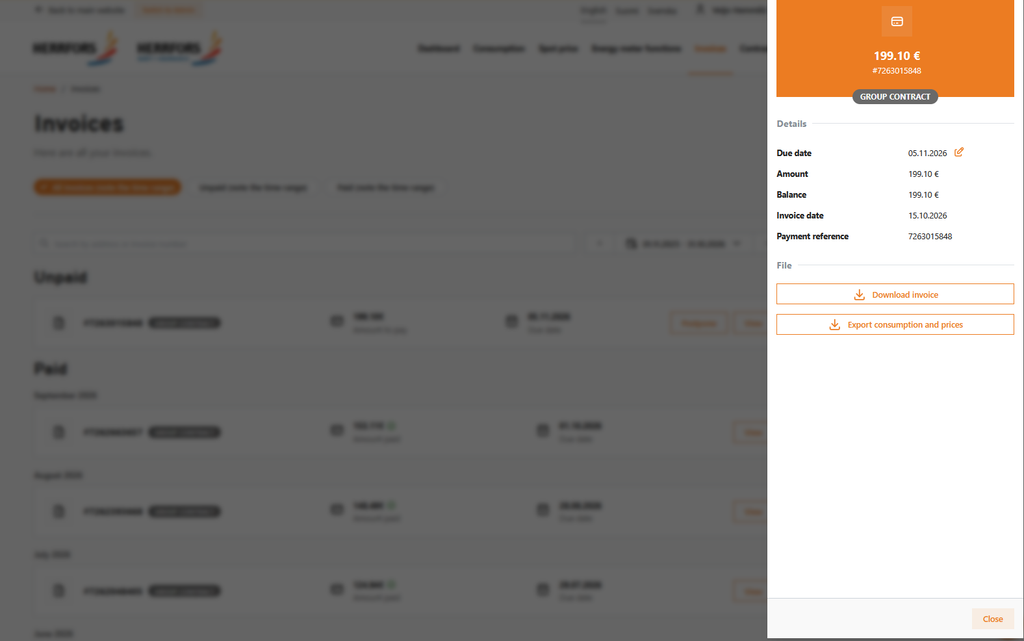
5. Download the invoice or a consumption summary
You can download the invoice as a PDF or retrieve a summary of your hourly consumption and cost data.
You can make a new electricity contract quickly and easily in MyHerrfors. To arrange a district heating or microgeneration contract, please contact our customer service team.
To make a new electricity contract in MyHerrfors:
1. Log in to MyHerrfors.
2. Click “Contracts” on the Overview page.
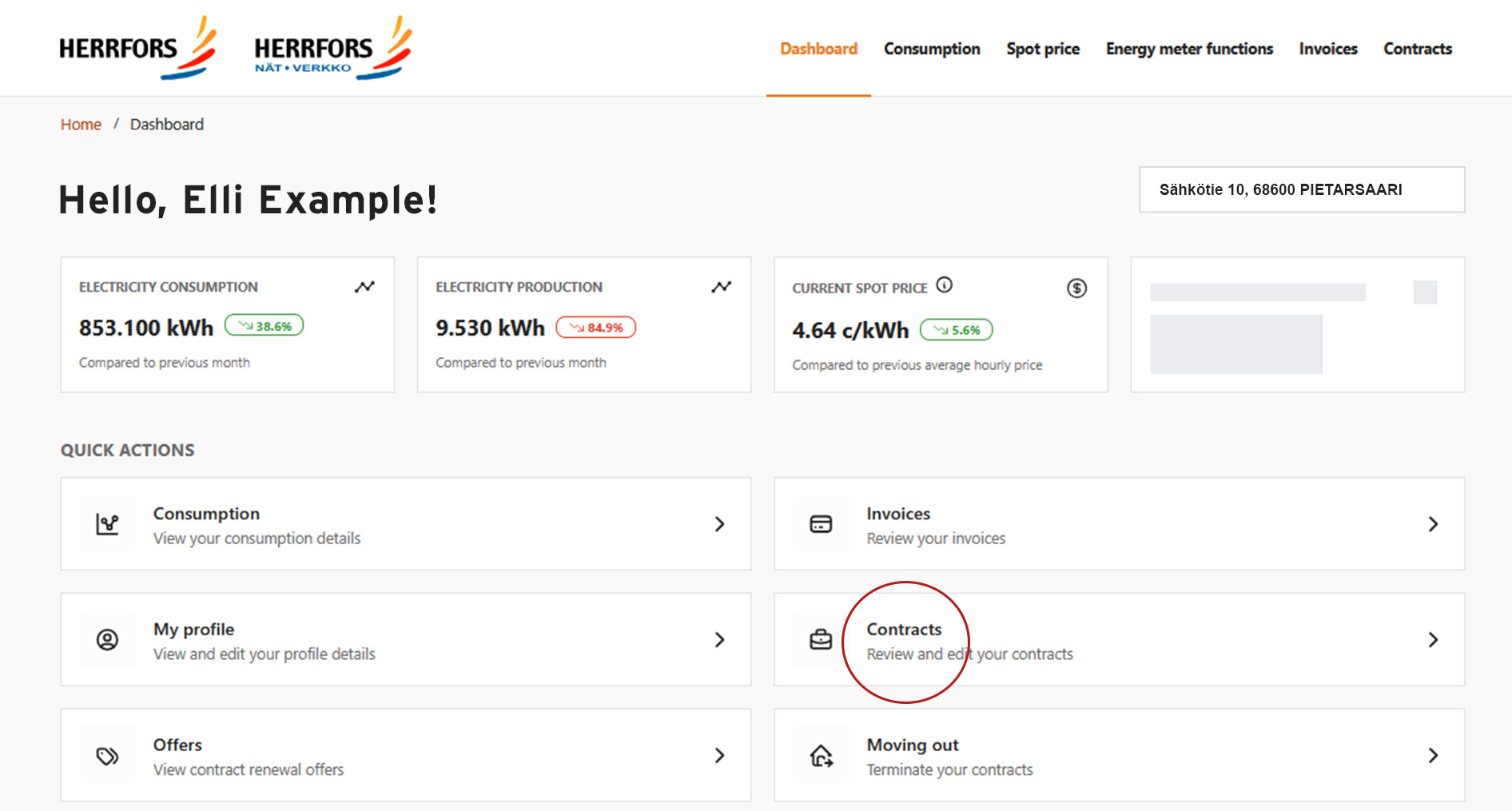
3. View your active contracts.
This view shows all your current contracts with us.
4. Make a new electricity contract.
Click “Sign a new electricity contract” in the top right corner.
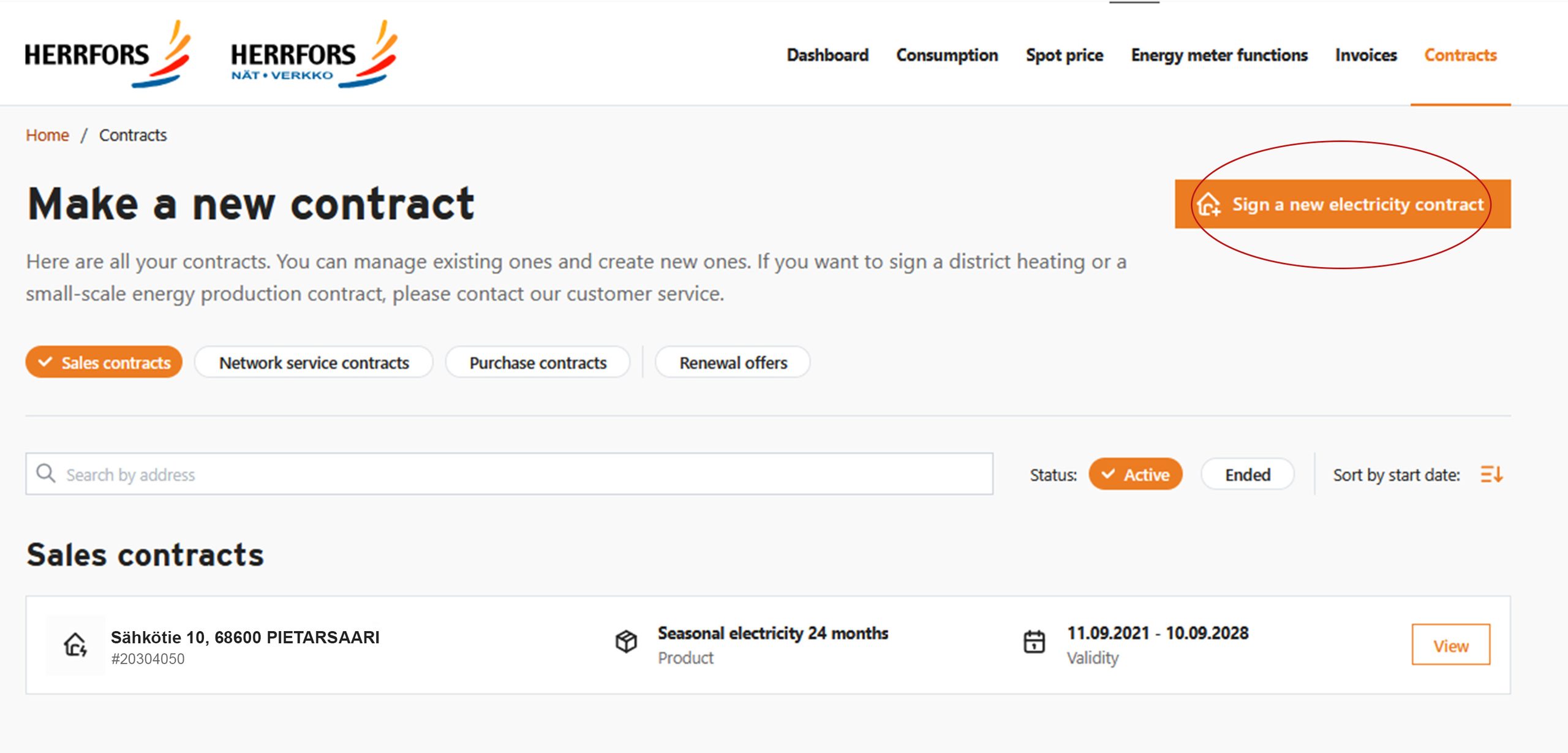
5. Search for the consumption point if it is not listed.
You can search by address or consumption point ID.
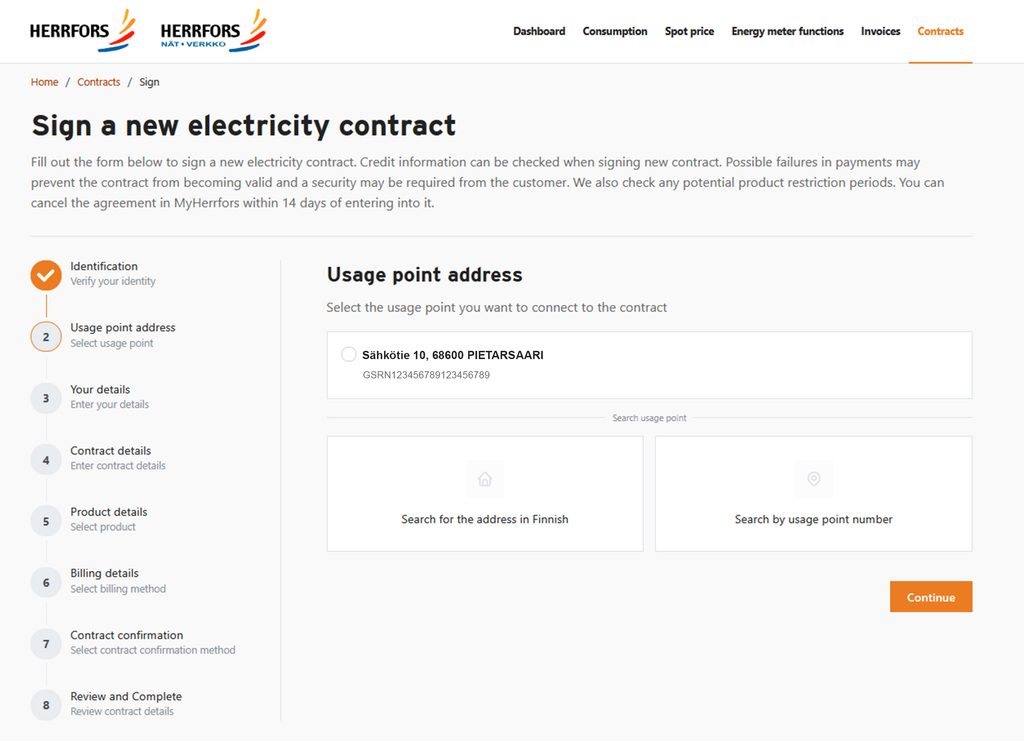
6. If you cannot find the consumption point by its address, try leaving out the staircase identifier and apartment number.
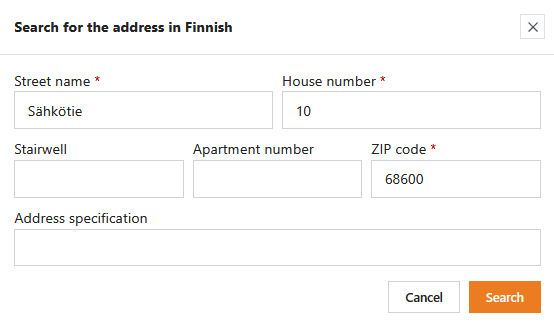
7. Follow the instructions in the service to complete the contract.
Please note!
- If you make a new contract for your current consumption point, your previous contract will end automatically.
- If you make a new contract for a different consumption point and want to terminate your old contract, for example when moving home, you must submit a separate moving notification. See “Moving notifications” below.
If you have received a new contract offer, you can easily review and accept it in MyHerrfors.
To accept an offer in MyHerrfors:
1. Log in to MyHerrfors.
2. Click “Offers” on the Overview page.
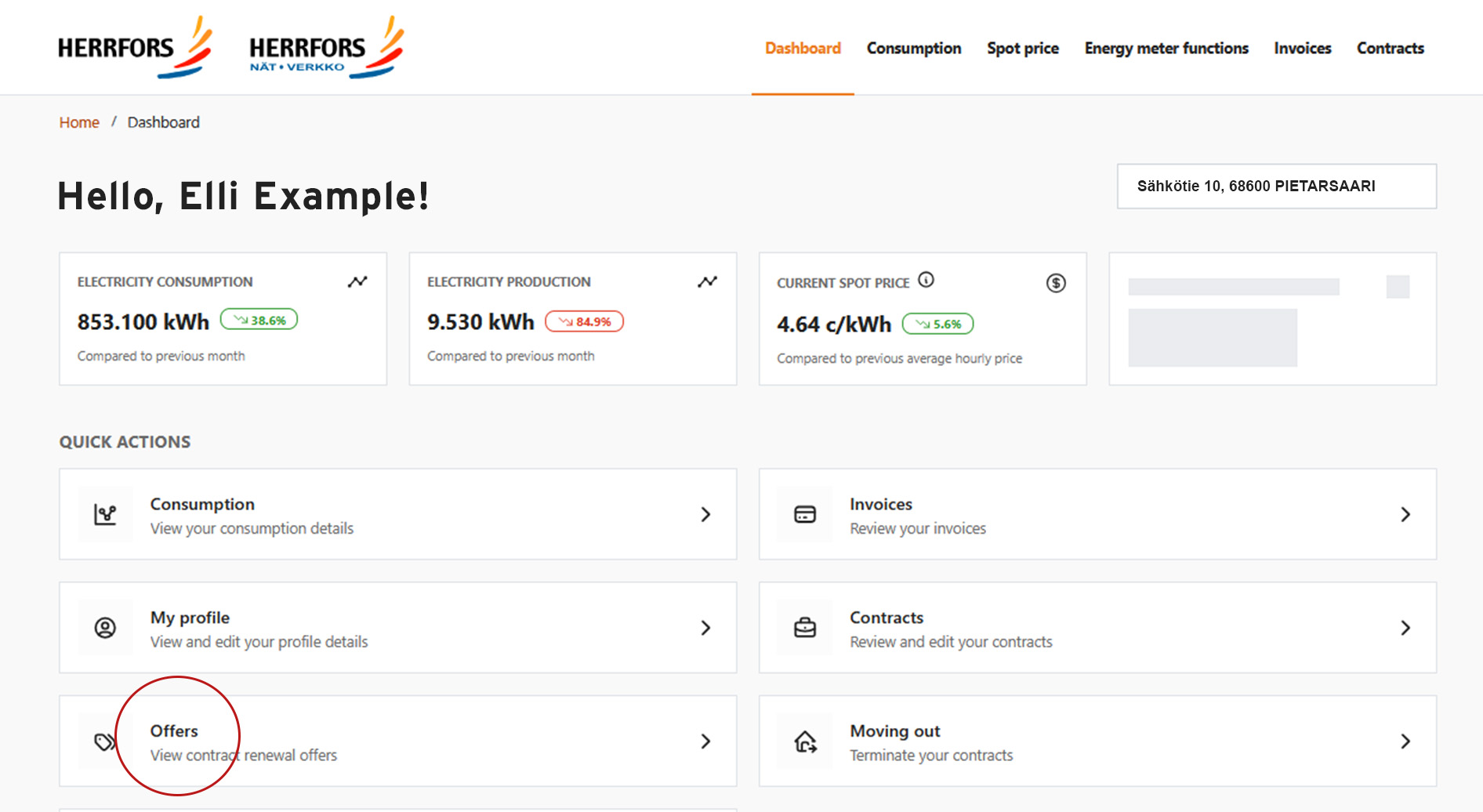
3. Review your offers.
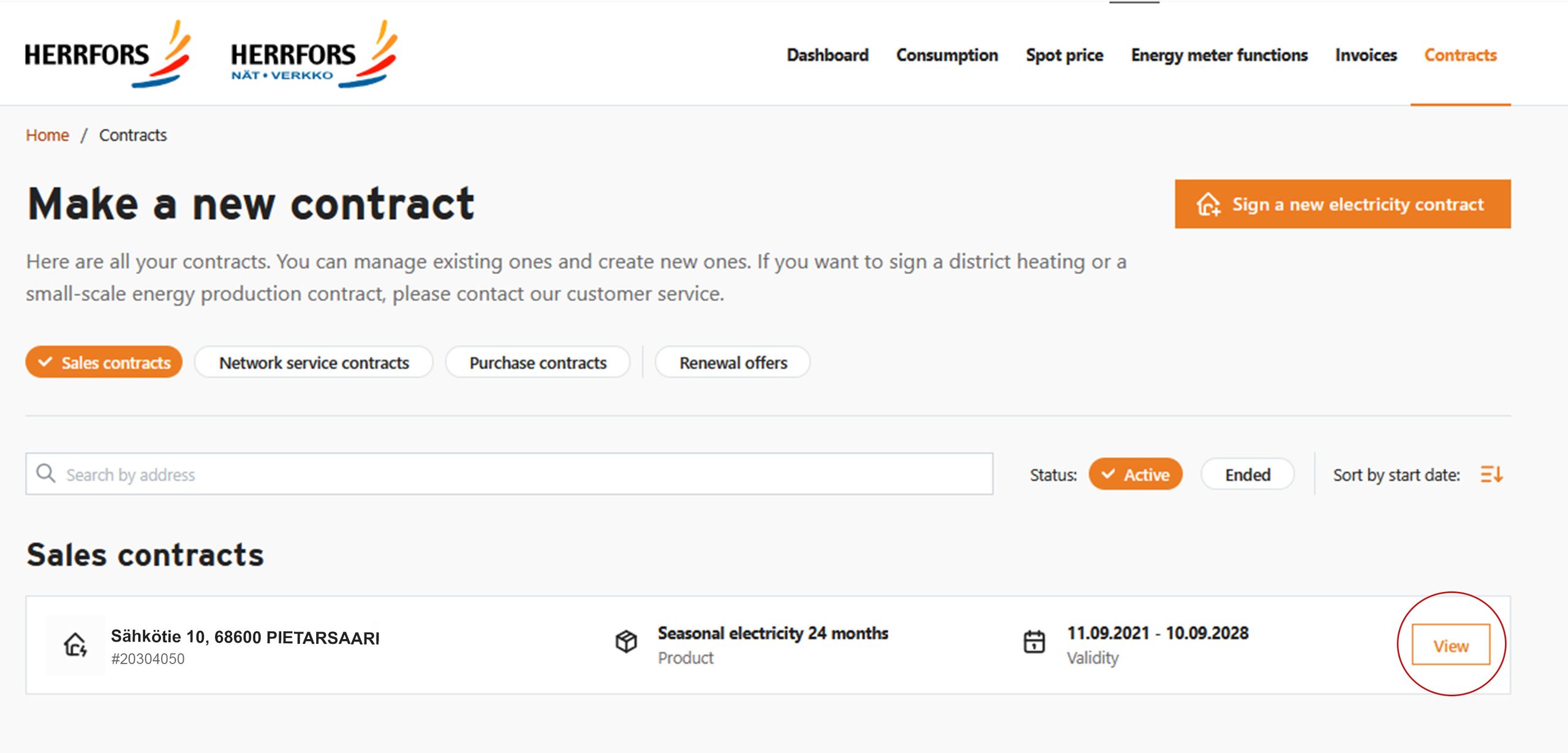
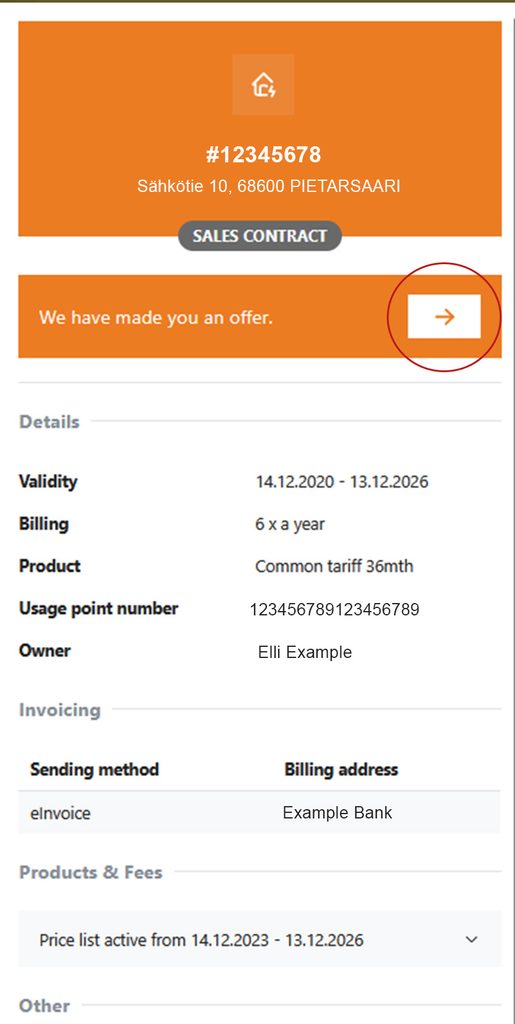
This view shows any renewal offers for contracts that are coming to an end. Click “View” to open the contract, then click the arrow to open the offer.
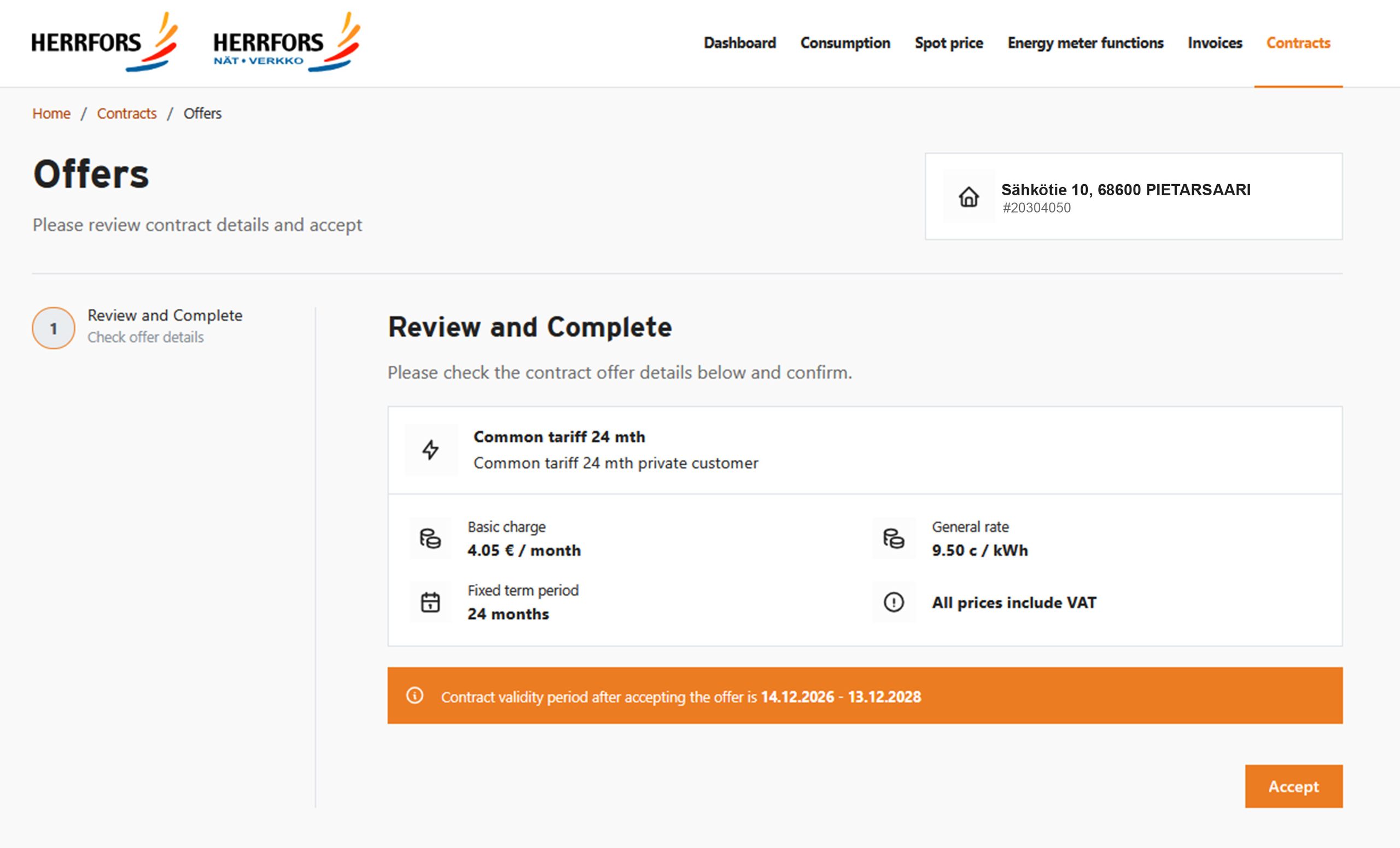
4. Accept the offer.
If you wish to accept the offer, you can do so directly in this view.
When you move and want to end your electricity contract, you must submit a moving notification. This allows us to end your contract and send the final invoice to your new address.
Please remember that a moving notification does not automatically create a new contract. You must make a separate electricity contract for your new address.
To submit a moving notification in MyHerrfors:
1. Log in to MyHerrfors.
2. Click “Moving” on the Overview page.
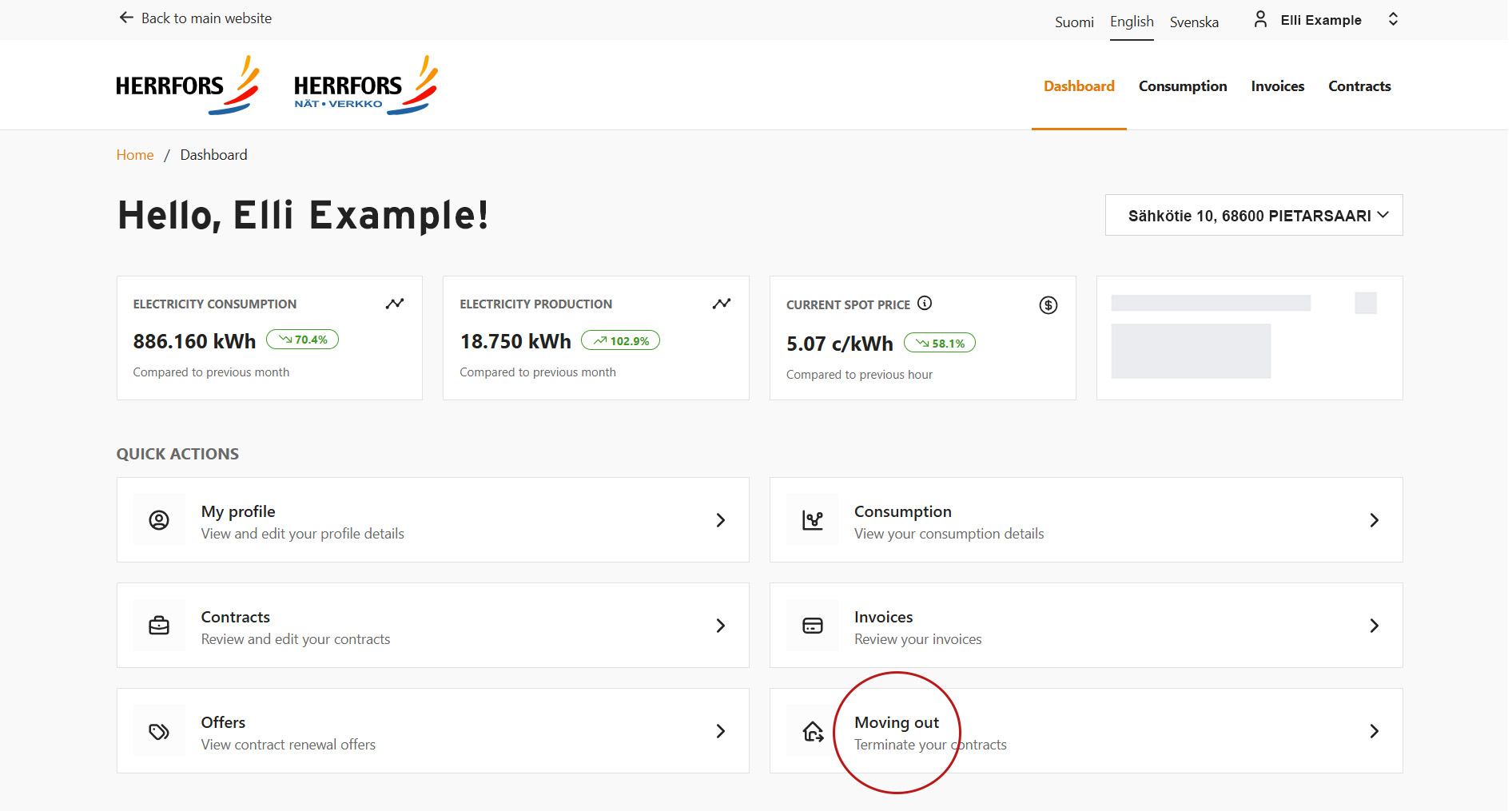
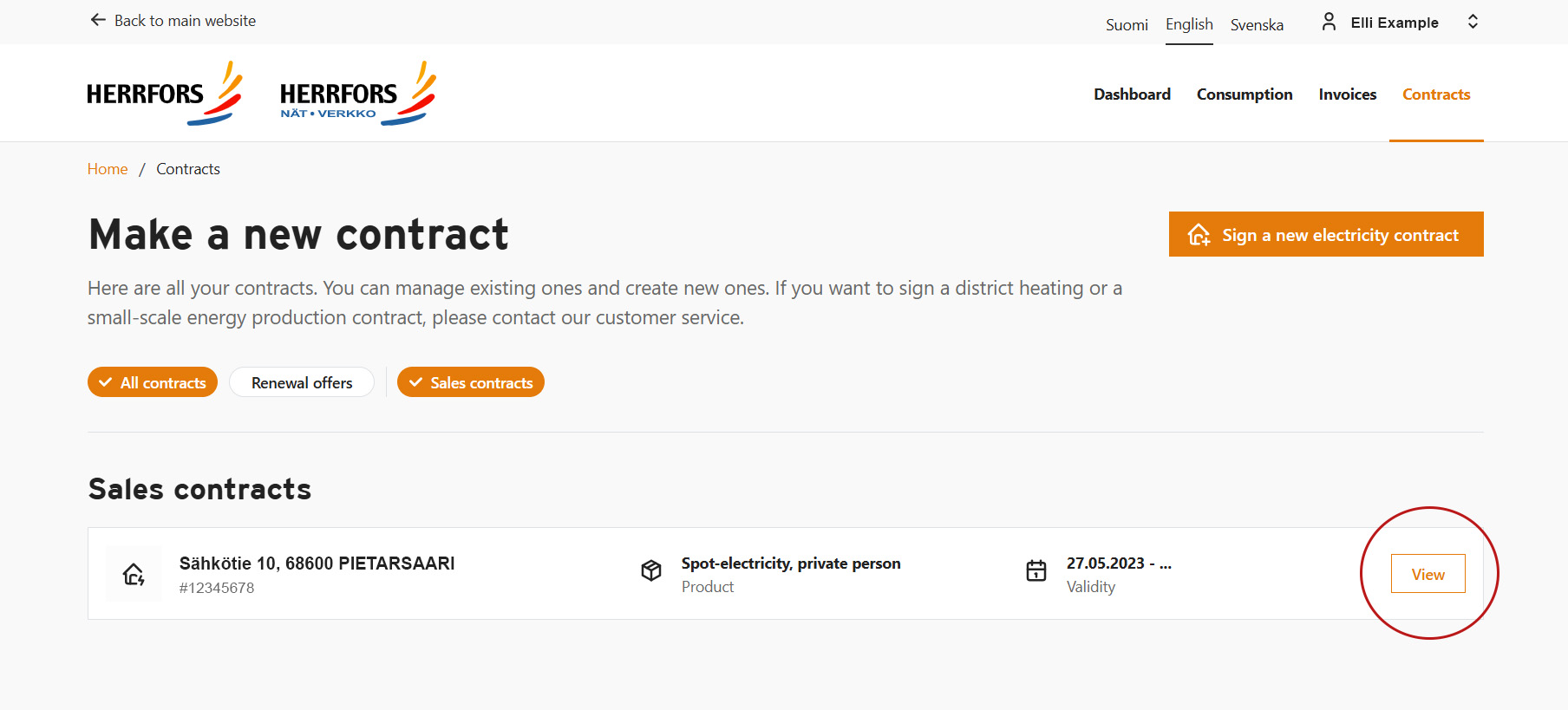
3. Select your electricity supply contract.
Click “View” next to the consumption point you are moving out of.
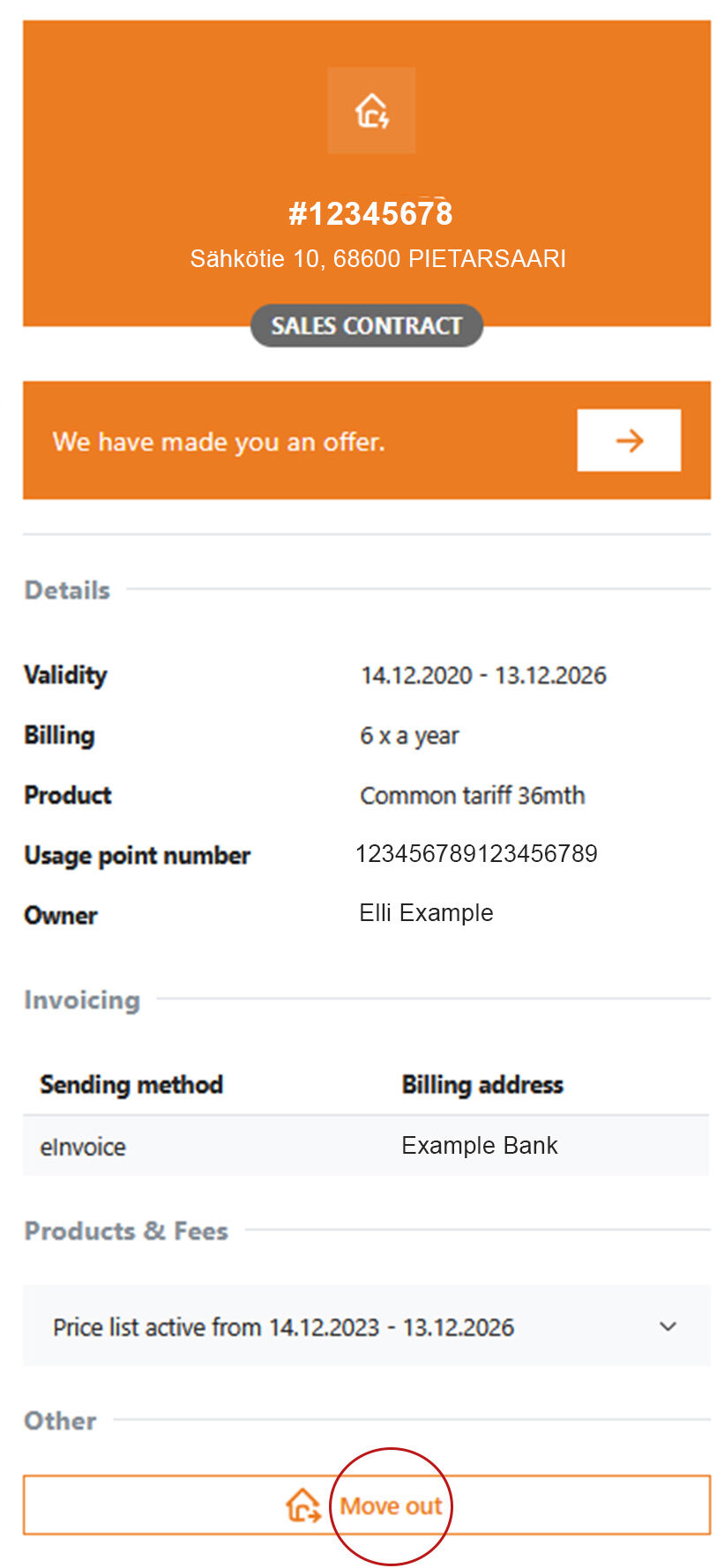
4. Start the moving notification.
Click “Moving”.
5. Enter your moving details.
Provide your moving date and new address. We need your new address to send you the final invoice. If you receive invoices by email or as e-invoices, your final invoice will be delivered through the same channel as usual.
6. Check and confirm the details.
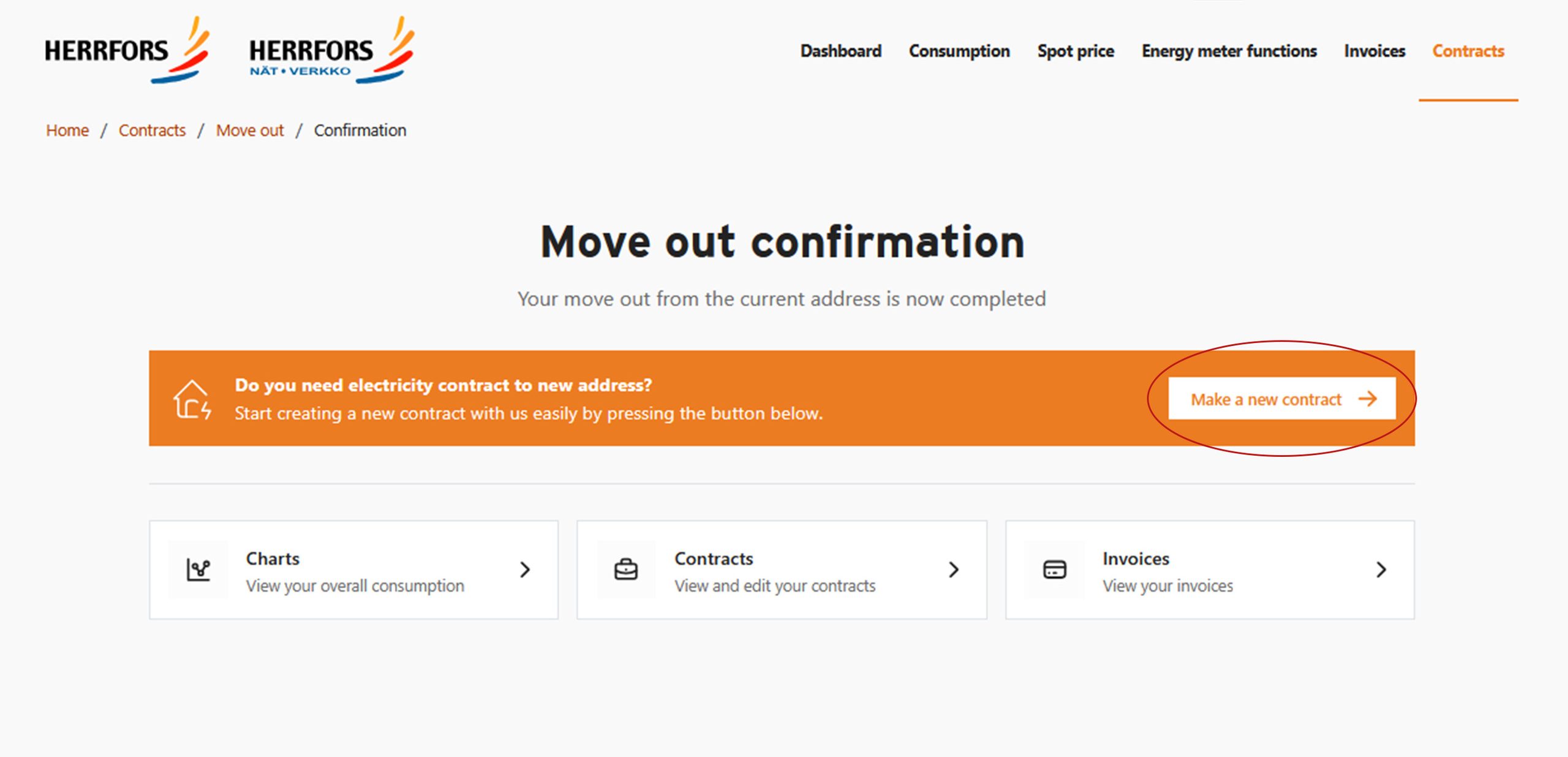
Please note! This notification only ends your current contract.
If you need a new electricity contract for your new address, you can make one after confirming the notification by clicking “Make a contract”.
To view your consumption data in MyHerrfors:
1. Log in to MyHerrfors.
You can access your consumption data directly from the home page or through the “Consumption” tab in the top menu.
2. Select a consumption point.
If you have more than one consumption point, select the relevant one from the drop-down menu.
3. Select a period.
Use the date selector to choose the period you want to view, such as last month or last year.
4. Compare and analyse your consumption.
You can compare consumption with previous periods, check spot prices and view temperature data.
5. View consumption in a table.
You can also display your consumption data in table format.
6. If you have microgeneration:
Your production data shows how much surplus electricity you have fed into the grid.
MyHerrfors allows you to view all your company’s information in one place. Before we can grant access, we must authorise an employee to act on behalf of the company, as logging in requires a mobile certificate or online banking credentials.
Please let us know if you later wish to revoke access.
What can corporate customers do in MyHerrfors?
As a business customer, you can:
- Change your contract product, make a new contract for a new address or terminate an existing contract.
- View electricity and district heating consumption.
- View invoices and payments.
- Check the details and contracts associated with your consumption points.
Common Problems and Solutions
1. Check the end date of your current contract.
You may be unable to make a new contract because you have an active fixed-term contract for the consumption point.
2. Check that all your details comply with Datahub’s validation rules.
Datahub applies several validation rules to addresses. If an address has been saved in a format that does not comply with these rules, you will be unable to complete the contract.
House number
- Must not contain spaces.
- Must not contain special characters other than a full stop (.), hyphen (-) or forward slash (/).
- Must not consist solely of special characters.
Staircase identifier
- Must not contain spaces.
- The Finnish word “asunto” or the Swedish word “bostad” must be abbreviated as “as”, “as.”, “bst” or “bst.” These abbreviations must be written in lower case.
- If the staircase identifier is a single letter, it must be written in upper case, for example “A”.
Apartment number
- Must not contain spaces.
- Must not contain upper-case letters.
- Must not contain special characters other than a full stop (.), hyphen (-) or forward slash (/).
- Must not consist solely of special characters.
- The staircase identifier must not be left blank if an apartment number is provided.
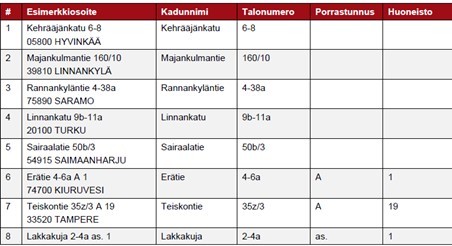
Examples:
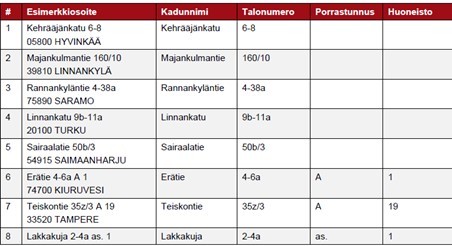
Datahub also validates phone numbers, so check that your phone number has been entered correctly.
- The first digit after the country code must not be zero:
- Correct: +358 40 12345678
- Incorrect: +358 040 12345678
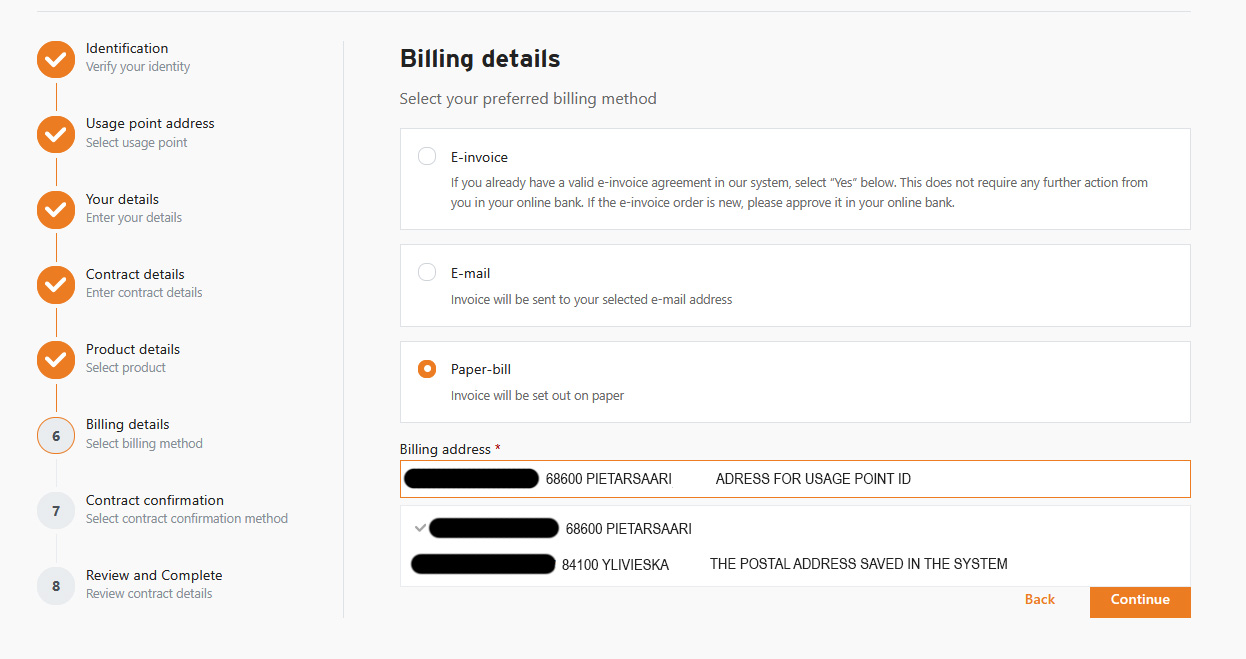
If you select a paper invoice under “Billing details”, the system suggests the address for which you are making the contract—the consumption point address—as your billing address.
However, the consumption point address may not meet the validation rules for billing addresses. For example, a cottage address without a house number does not meet the billing address requirements, because a house number is mandatory. Make sure you have selected a valid billing address.
If another postal address is already saved in our system, you can select it from the drop-down menu. You can also add a new address by clicking “Add a different billing address”.
3. Contact our customer service team if you still cannot complete the contract.
I am trying to terminate my electricity supply contract in MyHerrfors, but an error message appears.
1. Check whether your contract already has an end date.
If your contract already has an end date, you cannot confirm a moving-out notification. Check your contract details to see whether an end date has already been set. For example, your contract may already have ended because another person has made a new contract for the same consumption point.
2. Check that your new postal address has been entered correctly.
An error in the address may also prevent you from completing the moving-out notification. The address format rules are based on the values permitted by Datahub. The postal town and postcode must match Posti’s register. This check only applies to addresses in Finland.
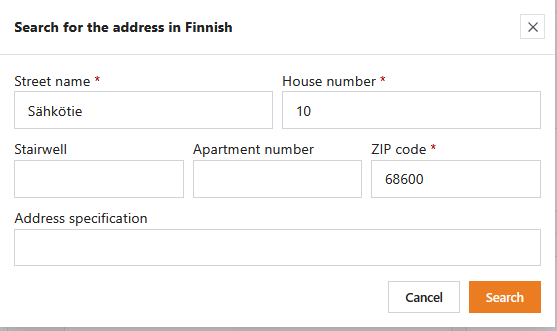
House number
- Must not contain spaces.
- Must not contain special characters other than a full stop (.), hyphen (-) or forward slash (/).
- Must not consist solely of special characters.
Staircase identifier
- Must not contain spaces.
- The Finnish word “asunto” or the Swedish word “bostad” must be abbreviated as “as”, “as.”, “bst” or “bst.” These abbreviations must be written in lower case.
- If the staircase identifier is a single letter, it must be written in upper case, for example “A”.
Apartment number
- Must not contain spaces.
- Must not contain upper-case letters.
- Must not contain special characters other than a full stop (.), hyphen (-) or forward slash (/).
- Must not consist solely of special characters.
- The staircase identifier must not be left blank if an apartment number is provided.
Examples:
3. Contact our customer service team if you still cannot terminate your electricity supply contract.
We will help you resolve the problem.
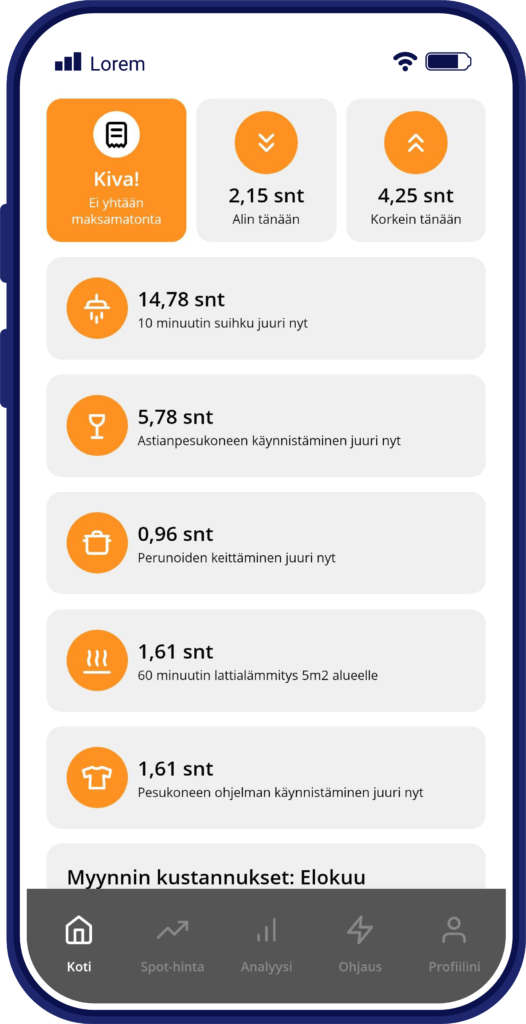
Remember to download the Herrfors app
The Herrfors app helps you reduce your electricity costs and become a smarter energy consumer.
In the app, you can view all your electricity invoices from Herrfors, follow spot prices daily, and monitor your energy consumption. It has never been easier to keep track of your electricity usage and electricity prices – all this and much more in one convenient app.


Contact our customer service team
Our customer service team will be happy to help if you have further questions or encounter any problems. We also welcome feedback and suggestions for improving our online services.
![Email:]() info@herrfors.fi
![Phone number:]() (06) 781 5300
![Working hours:]() Weekdays 10:00-15:00
 info@herrfors.fi
 (06) 781 5300
 Weekdays 10:00-15:00